

Actor Snapping Shortcuts
Save yourself from actor alignment annoyances by using these handy snapping shortcuts!
TezenariUpdated 4 years ago|
Actors
Shortcuts
Viewport
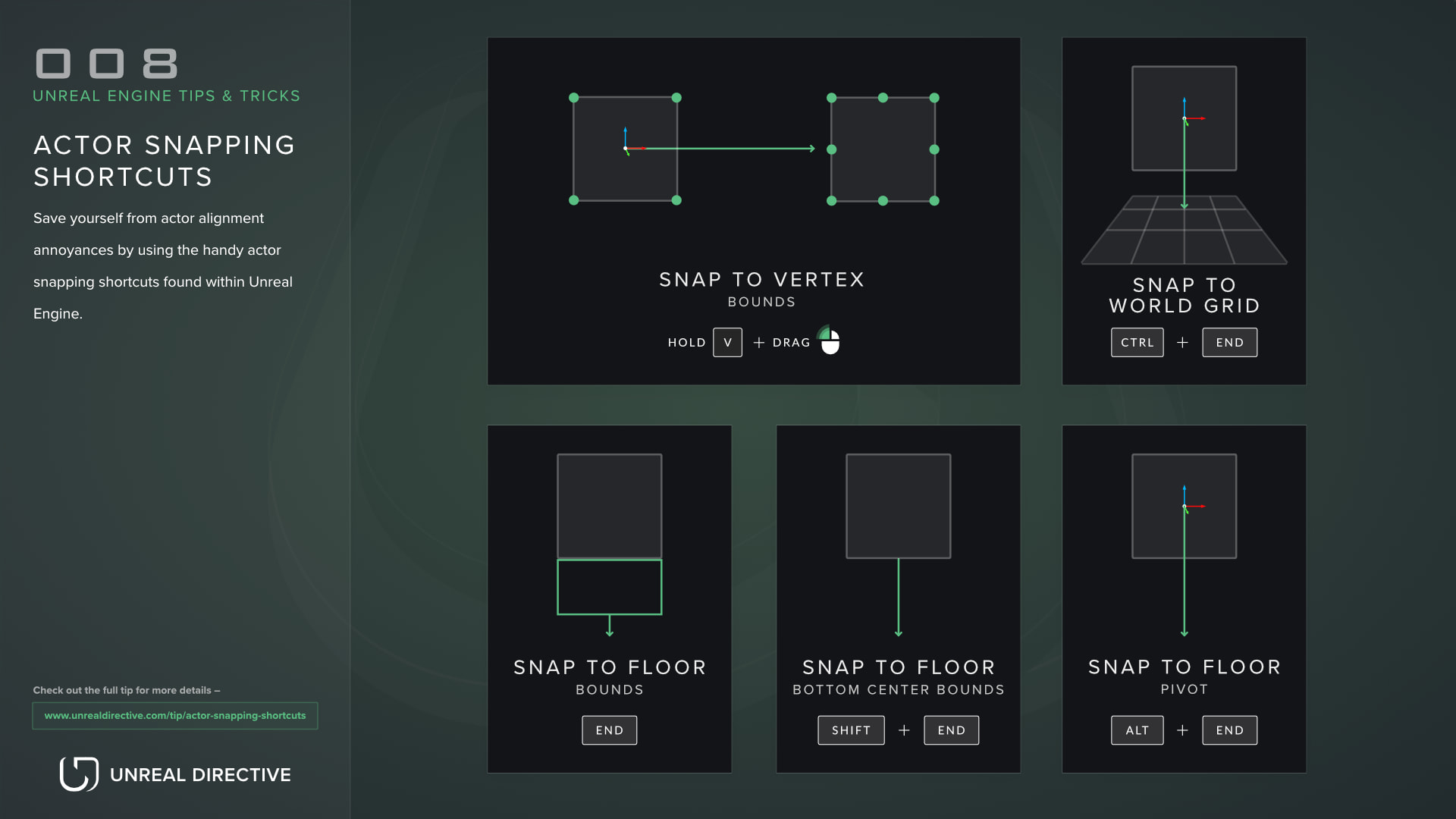
Save yourself from actor alignment annoyances by using these handy snapping shortcuts!
Utilize the vertex, floor, and grid snapping shortcuts to cut down on actor alignment annoyances!
| Shortcut | Description |
|---|---|
| Hold V + drag LMB | Snap actor to nearest mesh vertex. |
| ALT + V + drag MMB | Snap actor pivot to nearest mesh vertex. |
| END | Snap actor to the floor below it based on actor bounds. |
| SHIFT + END | Snap actor to the floor below it based on actors bottom center bounds. |
| ALT + END | Snap actor to the floor below it based on the actors pivot location. |
| CTRL + END | Snap actor to the nearest world grid location. |
Save yourself from actor alignment annoyances by using the handy actor snapping shortcuts found within Unreal Engine.
First up, vertex snapping. By holding down the V key and dragging an actor by it's pivot, you can snap the actor to the vertex of any mesh within your scene. This is extremely helpful for seamlessly snapping together modular assets, aligning walls along a floor, and more.
Shortcut: Hold V
A helpful extension to vertex snapping is the vertex snapping of the actors pivot point. By holding down the ALT + V shortcut and moving the pivot point using the middle mouse button, you can snap the actors pivot to any meshes vertex, including the actors own mesh. This allows fine tuned control as you're not locked to the baked pivot point.
Shortcut: ALT + V + Drag MMB
Next up, snapping an actor to the nearest floor mesh. By pressing the END key, the selected actor will snap downwards to the nearest mesh below it. This calculation is based on the full bounding box of the actor.
Shortcut: END
By pressing the SHIFT key along with the END key, the selected actor will also snap downwards to the nearest mesh below it. However, this time the calculation is based on the central point of the bounding box found at the bottom of the actor.
Shortcut: SHIFT + END
By pressing the ALT key along with the END key, the selected actor will snap downwards to the nearest mesh below it. However, rather than using the actors bounding box, it will use the actors pivot.
Shortcut: ALT + END
Lastly, by pressing the CTRL + END shortcut, the actor will snap to the nearest world grid point. This one is quite handy at aligning the actors world location to the grid, removing those pesky decimal points.
Do keep in mind that this shortcut snapping shortcut using the grid snap value, even if disabled. Therefore, if you have the snap value set to 100, it'll snap to the nearest 100th world grid location.
Shortcut: CTRL + END
There are three likely reasons for this --
1. Your floor mesh doesn't have any collision
Make sure your floor mesh has simple collision as this is what the editor uses to calculate the snap.
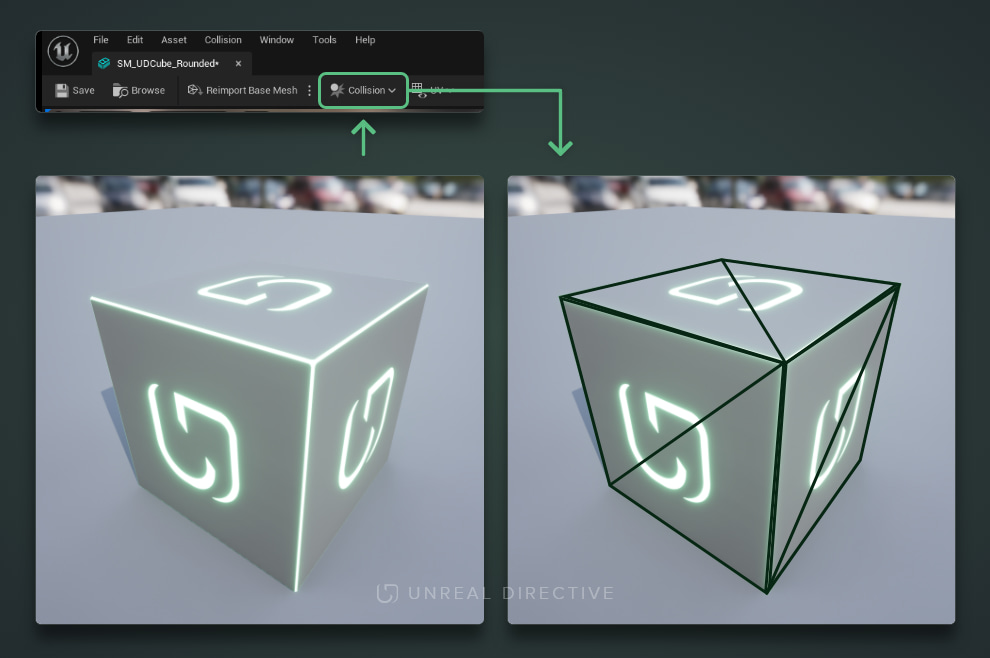
2. Your actor's collision isn't set correctly
Make sure your floor mesh actor has it's WorldStatic object response set to block. If this is set to anything else, the snapping will not occur.
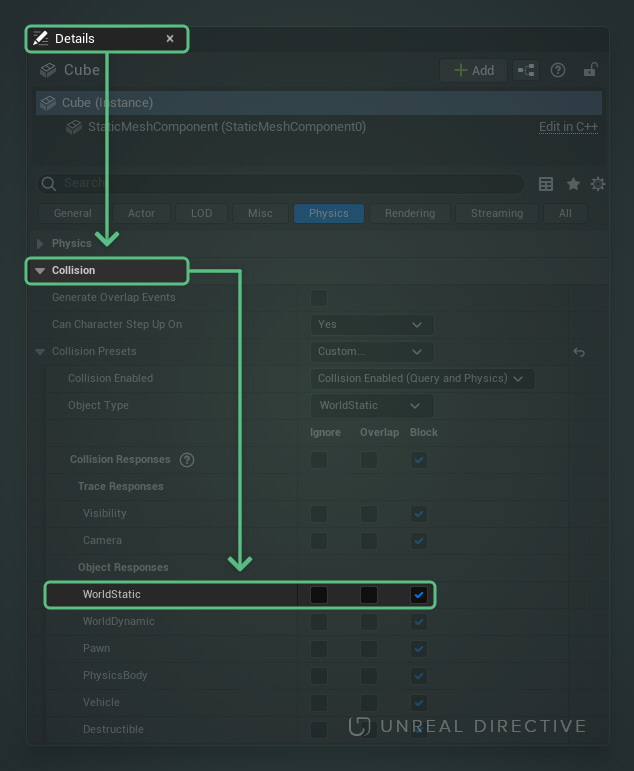
3. The snap calculation is being intercepted
If the actor's bounding box is intercepting the bounding box of another actor, then this will conflict with the floor snap calculation. If it's only partially intercepted, then use the ALT + END shortcut to use the unobstructed bottom center of the bounding box for the calculation.