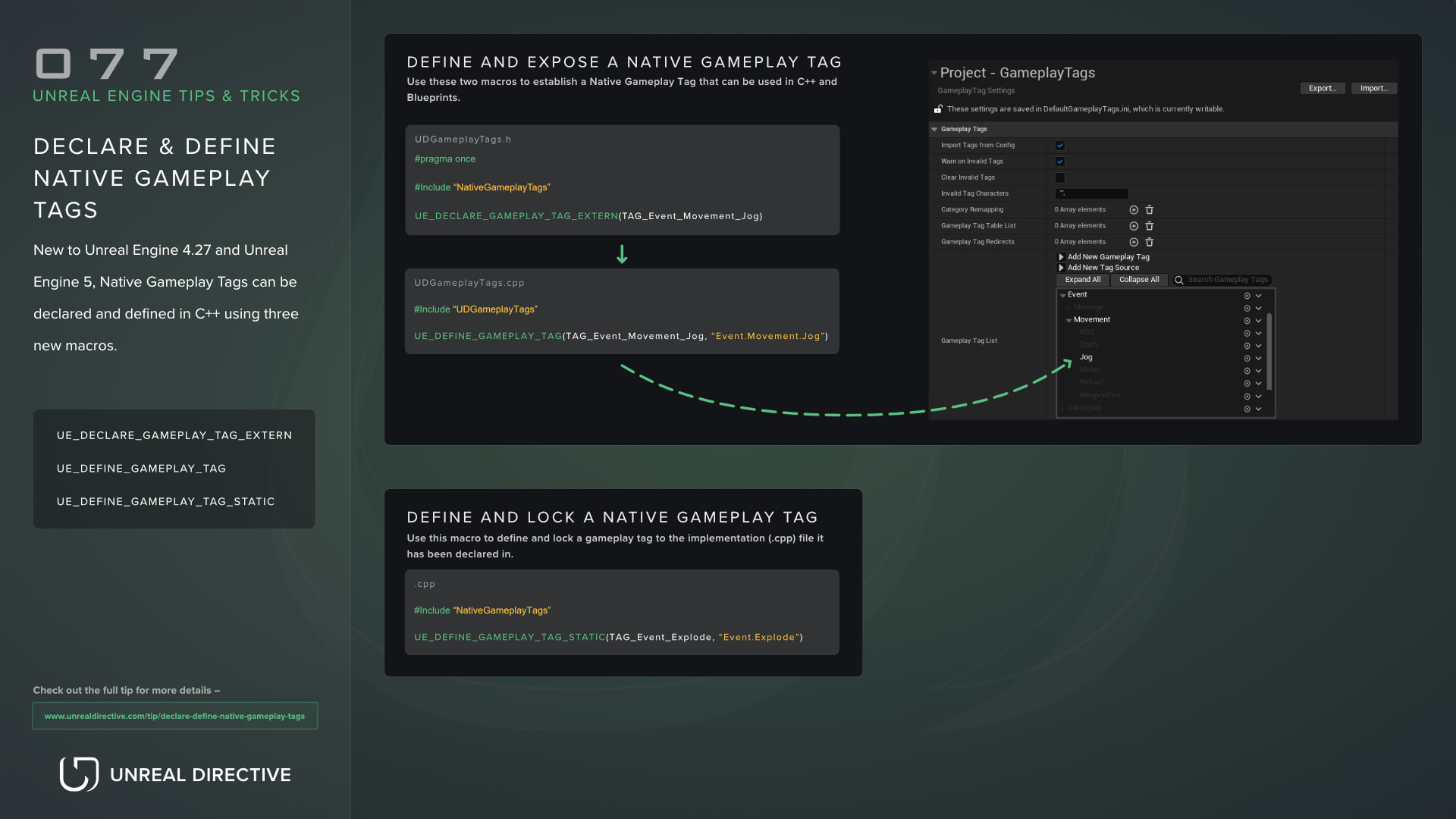
New to Unreal Engine 4.27 and Unreal Engine 5, Native Gameplay Tags can be declared and defined in C++ using three new macros.
Check out the Gameplay Tags Hub for a searchable reference of 300+ tags, best practices, setup guides, and patterns for GAS, CommonUI, and Enhanced Input.
To declare and expose a Native Gameplay Tag to your whole project, two of the three macros are required.
The first macro UE_DECLARE_GAMEPLAY_TAG_EXTERN should be declared in the header file. This macro takes in the tags name which should be prefixed with "TAG" and have each word separated with underscores.
For example, if you want to declare the gameplay tag Movement.Mode.Walk you would use the name TAG_Movement_Mode_Walk.
Like so —
.h
#include "NativeGameplayTags.h"/** Declares the "Movement.Mode.Jog" gameplay tag. */UE_DECLARE_GAMEPLAY_TAG_EXTERN(TAG_Movement_Mode_Jog)
The second macro UE_DEFINE_GAMEPLAY_TAG should be declared in the implementation file. This macros takes in the tags name, similar to UE_DECLARE_GAMEPLAY_TAG_EXTERN along with the tag itself.
For example —
cpp
/** Define and expose the gameplay tag "Movement.Mode.Walking" to other modules and code. */UE_DEFINE_GAMEPLAY_TAG(TAG_Movement_Mode_Jog, "Movement.Mode.Jog");
These two macros are required to define and expose a Native Gameplay Tag to your project and they do not work independently.
Once these two macros have been used to setup a Native Gameplay Tag, the gameplay tag will be readily available for use in C++ and Blueprints. In addition, it can be found in the Project Settings → Gameplay Tags section.
Define a Native Gameplay Tag for a specific implementation file
The third macro UE_DEFINE_GAMEPLAY_TAG_STATIC should be declared in the implementation file. Unlike the previous defining macro, this does NOT and should NOT be paired with UE_DECLARE_GAMEPLAY_TAG_EXTERN as this macro only defines the gameplay tag to be used in the declared implementation file.
That said, this gameplay tag will be visible in the Project Settings → Gameplay Tags section. But will not be available anywhere else except for the implementation file it was declared in.
cpp
/** Defines and locks the gameplay tag "Event.Explode" to this implementation file. */UE_DEFINE_GAMEPLAY_TAG_STATIC(TAG_Event_Explode, "Event.Explode");
Bonus Tip
It’s recommended to establish a dedicated header and implementation file for exposed Native Gameplay Tags rather than declare/defining them in separate files. This helps with gameplay tag management and including the file for C++ usage.
Now with a dedicated gameplay tag file, you simply need to include the file in any C++ file you wish to use the gameplay tags in.
Additional Notes
Here are some additional notes and observation regarding these macros —
Static macro is visible in Project Settings → Gameplay Tags
Static macro doesn’t require declaration macro
Can declare a gameplay tag without defining it (but won’t be available for use)
Need to use both the declare and define macros
The gameplay tags will not persist in the project if the declaration and defining macro’s are removed
Conclusion
When not requiring a Gameplay Tag Manager, these macros easily allows developers to add and remove Native Gameplay Tags with ease. This is especially helpful for plugins or game features that require gameplay tags.