

The Visual Logger
Utilize the Visual Logger to capture, visualize, and debug in-game events.
TezenariUpdated 3 years ago|
Profiling
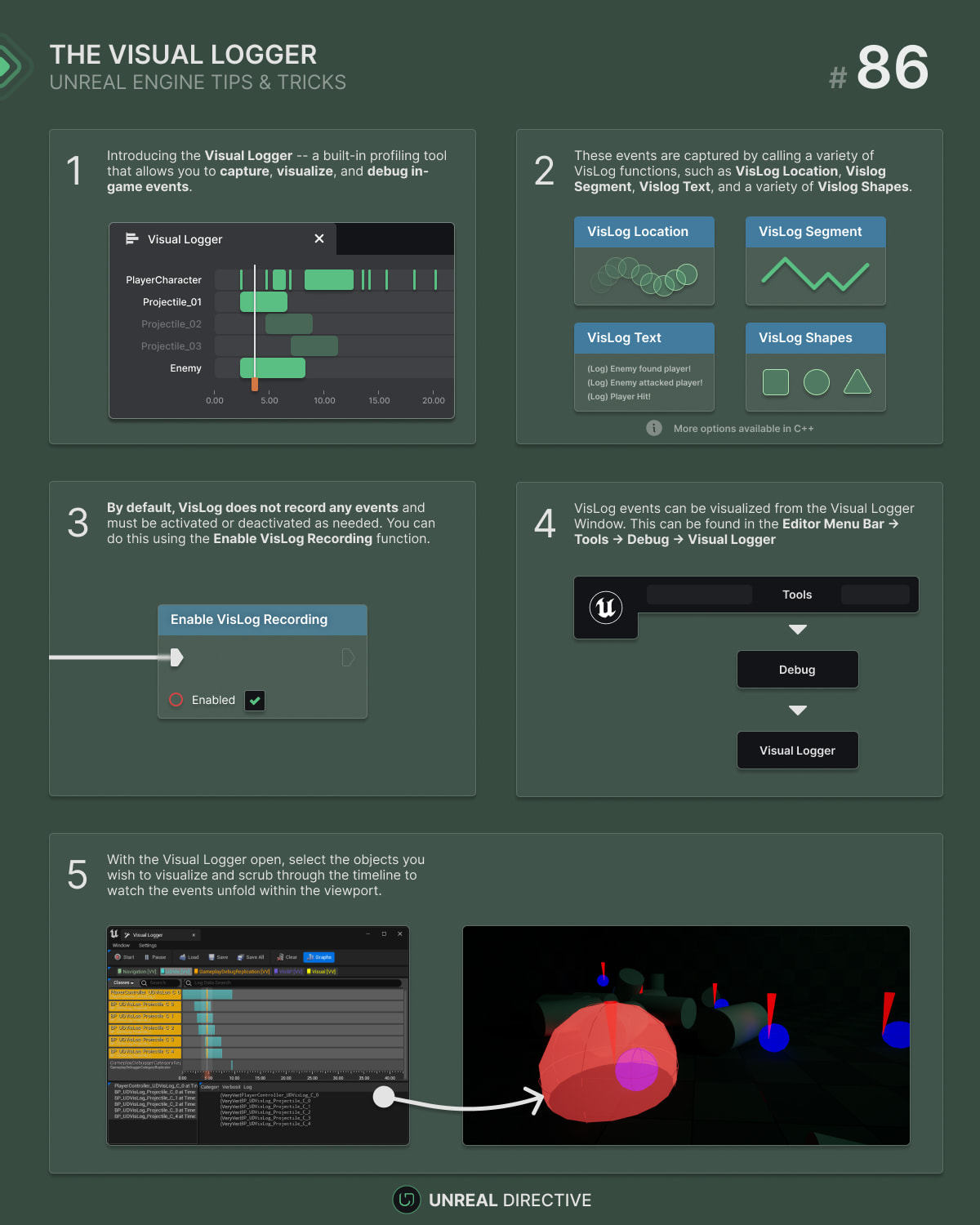
Utilize the Visual Logger to capture, visualize, and debug in-game events.
The Visual Logger, VisLog for short, is a powerful profiling tool that allows you to easily capture, visualize, and debug in-game events. It’s commonly used with AI debug visualization, however, it’s great for a plethora of other use-cases, such as —
There are two methods that you can use to open the Visual Logger —
The Visual Logger can be opened from the Editor Menu Bar.
Menu Bar
Tools
Tools option.Debug
Tools menu, click on the Debug option.Visual Logger
Debug menu, click on Visual Logger to open up the Visual Logger
window.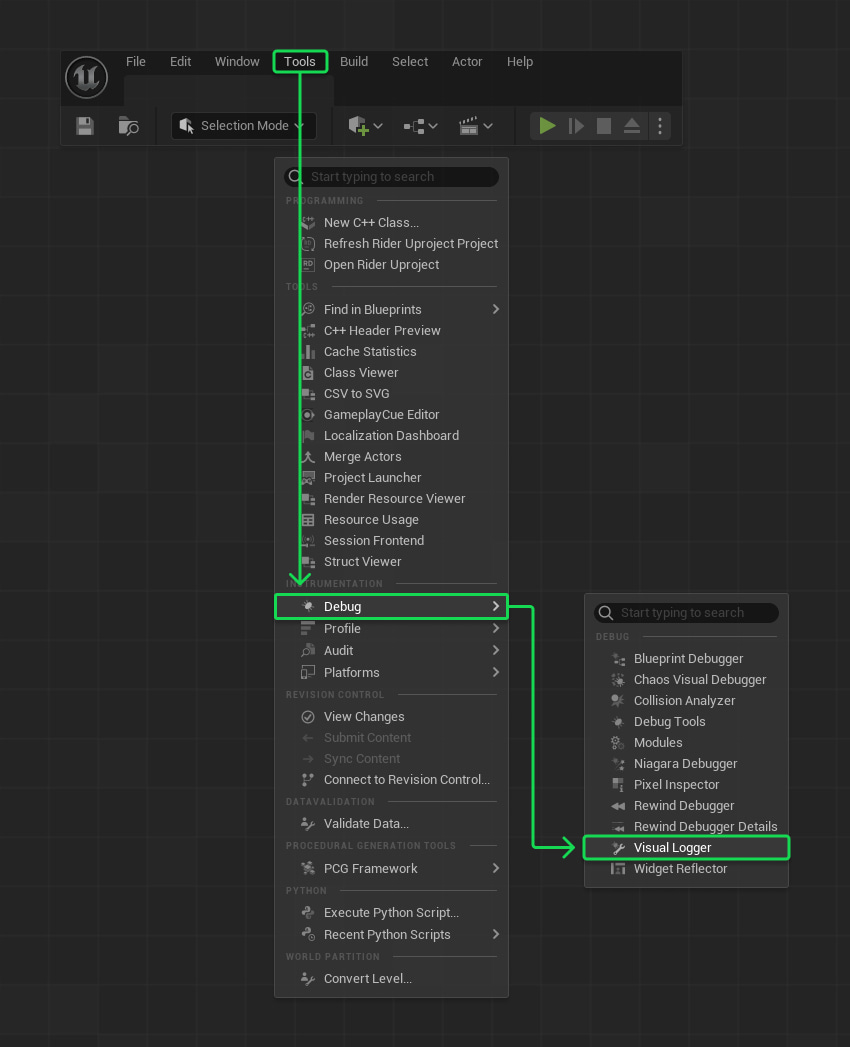
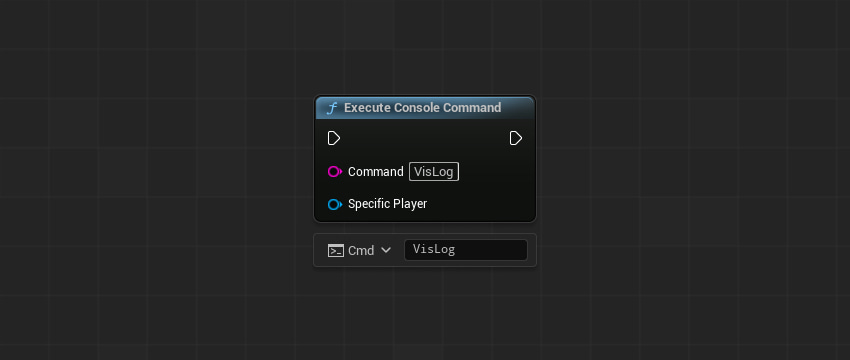
Use the VisLog console command to open the Visual Logger window.
No. The VisLog only records data when it is enabled.
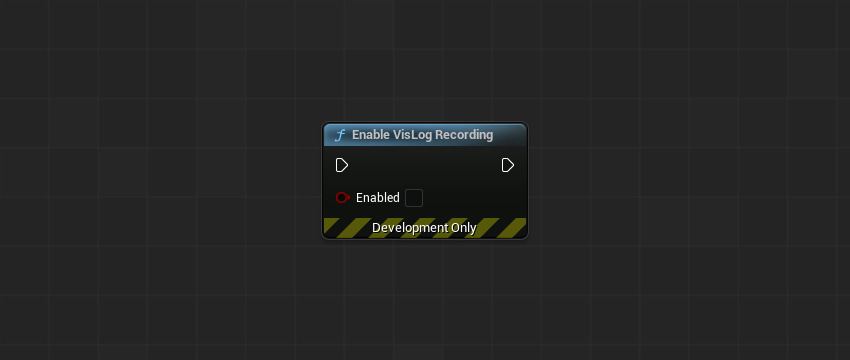
Use the Enable VisLog Recording function to toggle VisLogging on and off.
FVisualLogger& VisualLogger = FVisualLogger::Get();
VisualLogger.SetIsRecording(true);There are a variety of functions and methods that can be used VisLog events. Here are a few common ones —
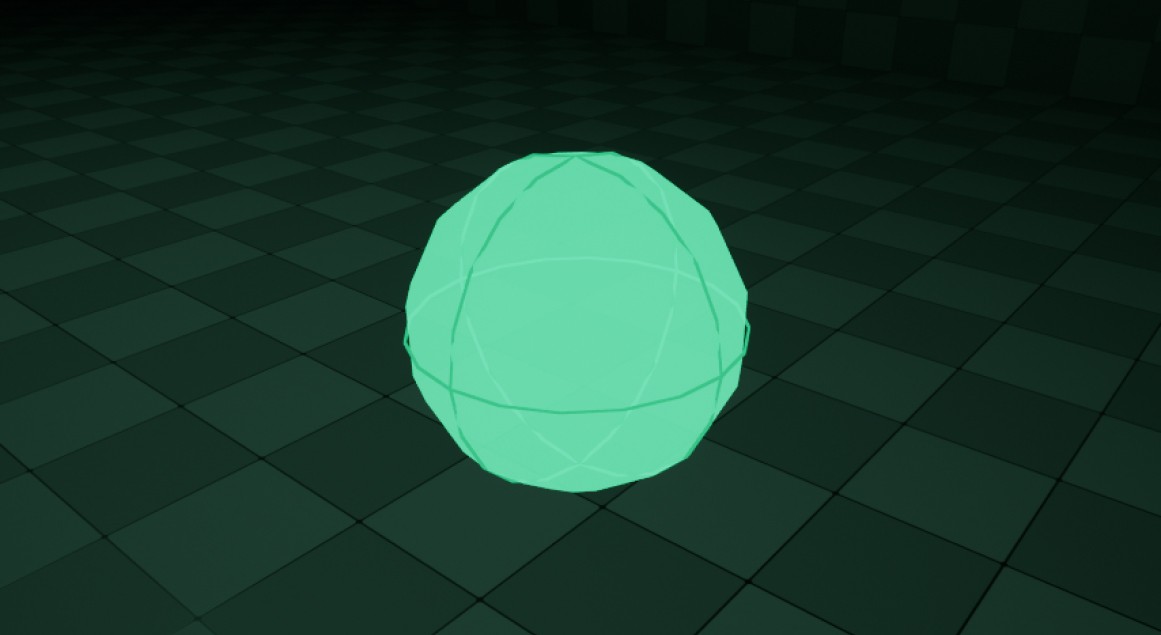
The VisLog Location function records a particular location, represented as a sphere with a specified radius.
This function can be great for visualizing —
The VisLog Segment function records a line with a specified start and end position.
This function can be great for visualizing —

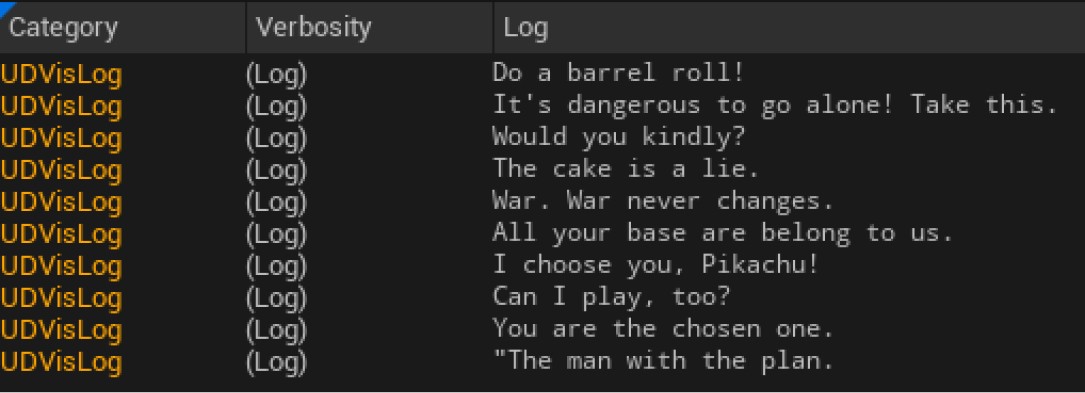
The VisLog Text function is useful for logging a simple text string, perfect for capturing data related to a specific event.
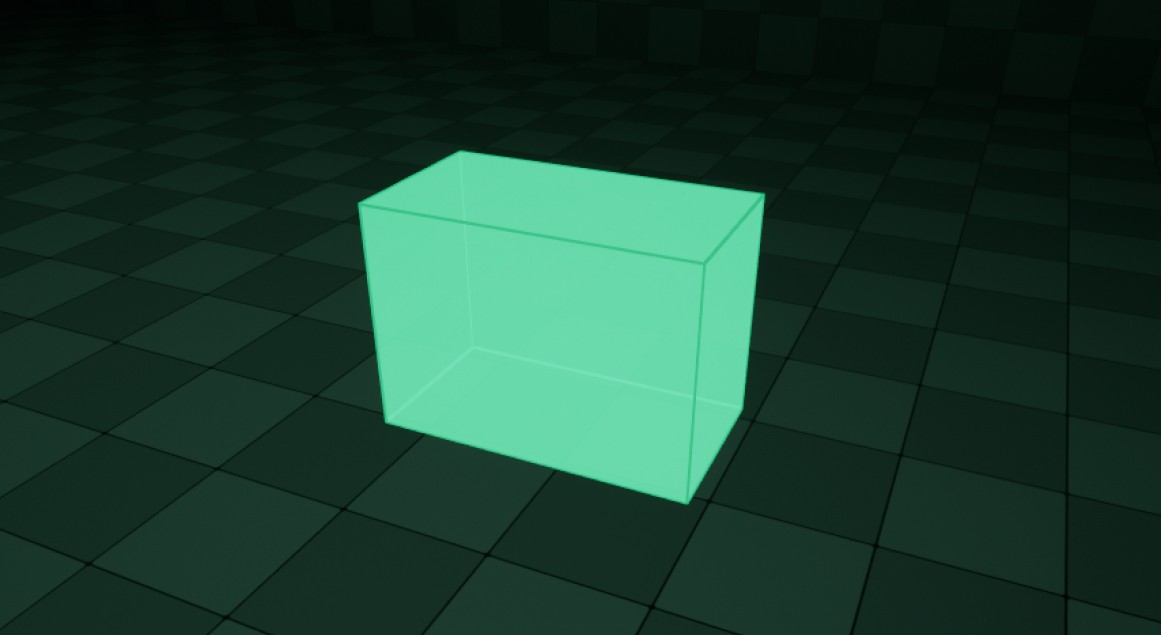
A vast array of shapes is available for visualization when using C++, enabling you to represent almost anything. Although most of these shapes aren't directly accessible in Blueprints, they can be exposed for use within Blueprints, providing even more flexibility.
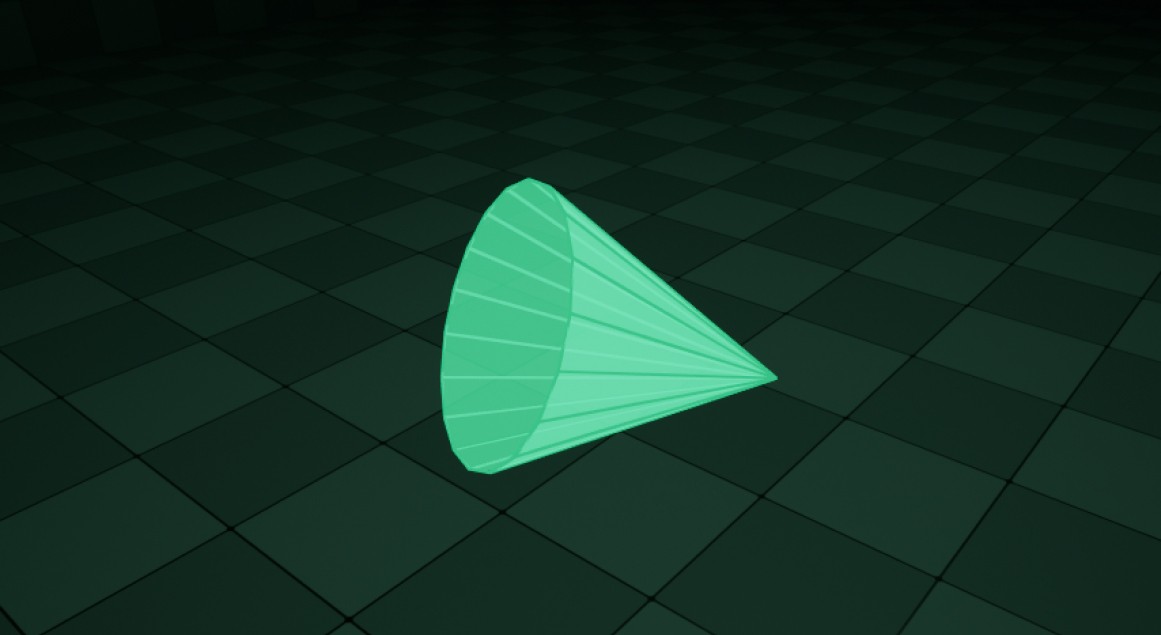
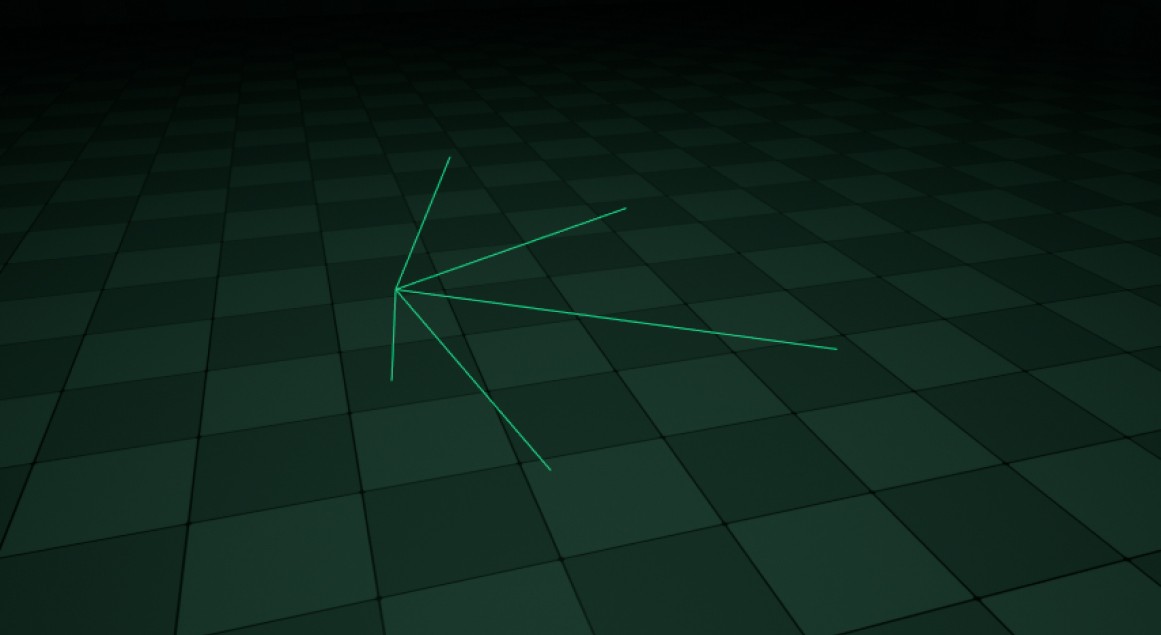
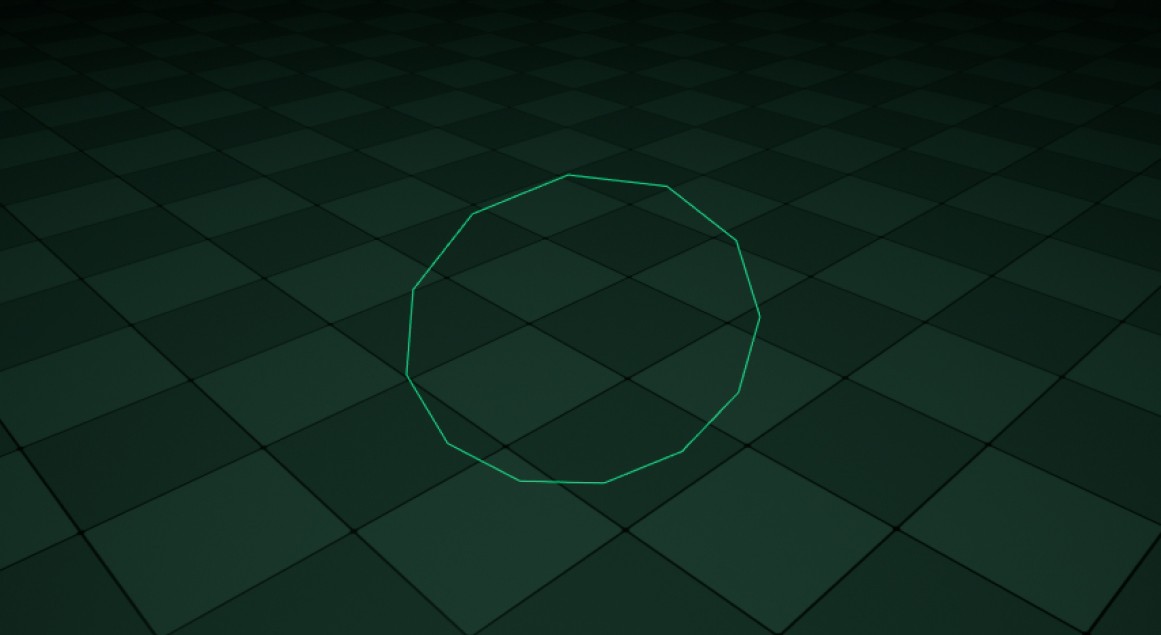
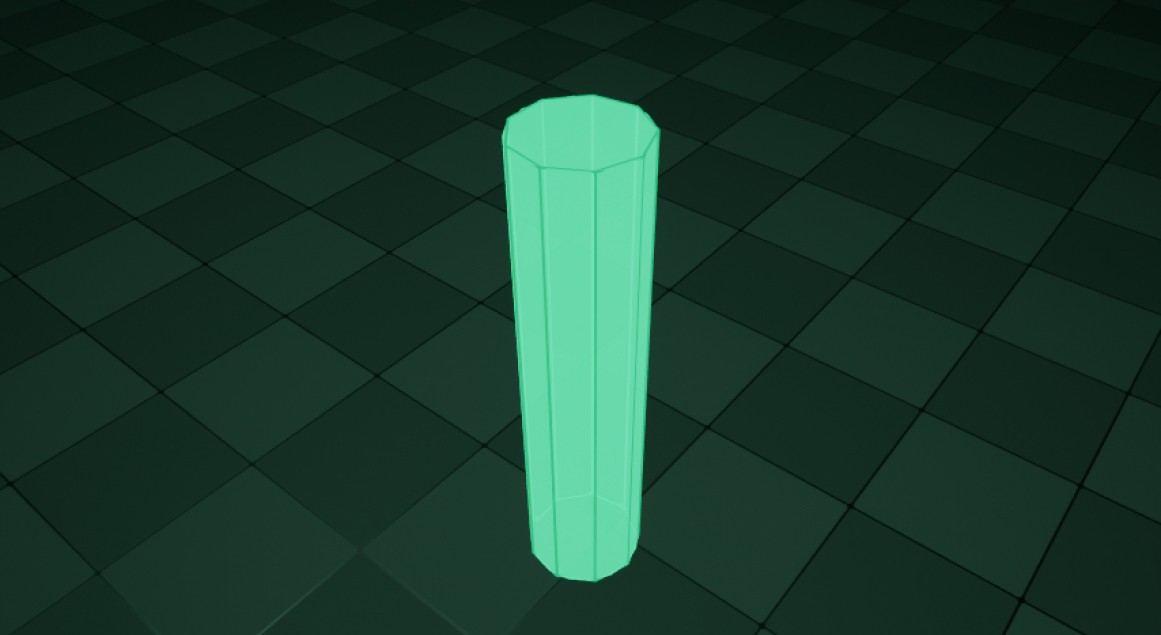
While I covered the common ones, I want to at-least mention the interesting ones.
There are multiple other C++ macros that might prove useful —
The UE_VLOG_MESH macro is used to draw a custom mesh using vertices and indices. Useful for debugging issues related to collision or navigation.
The procedural mesh and geometry scripting functions are quite useful when using this macro.
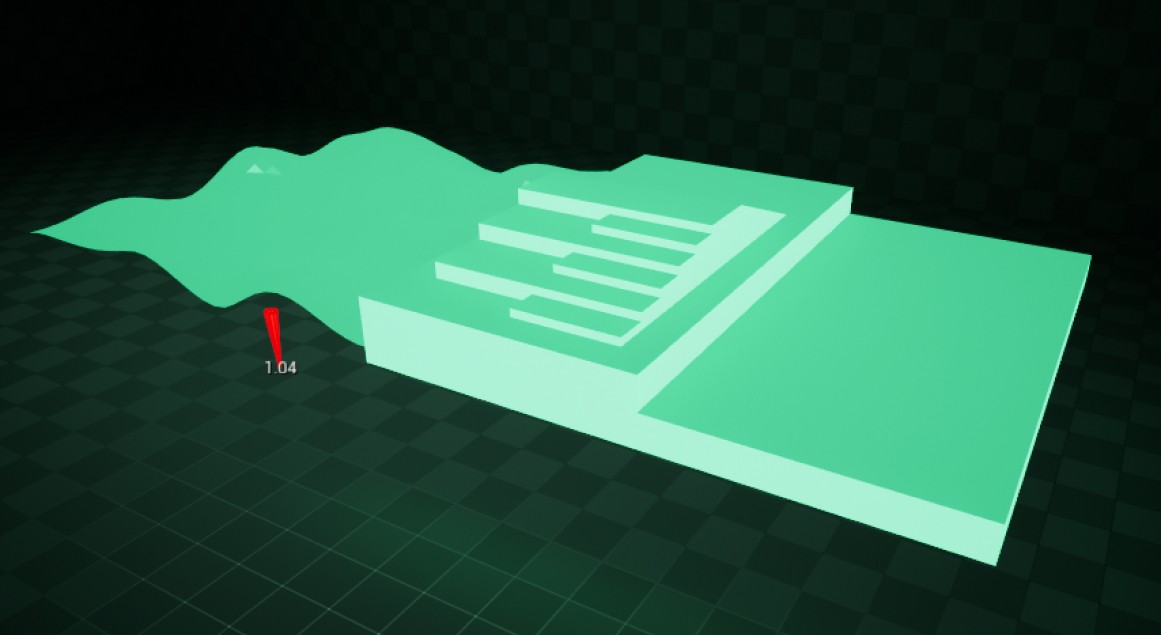
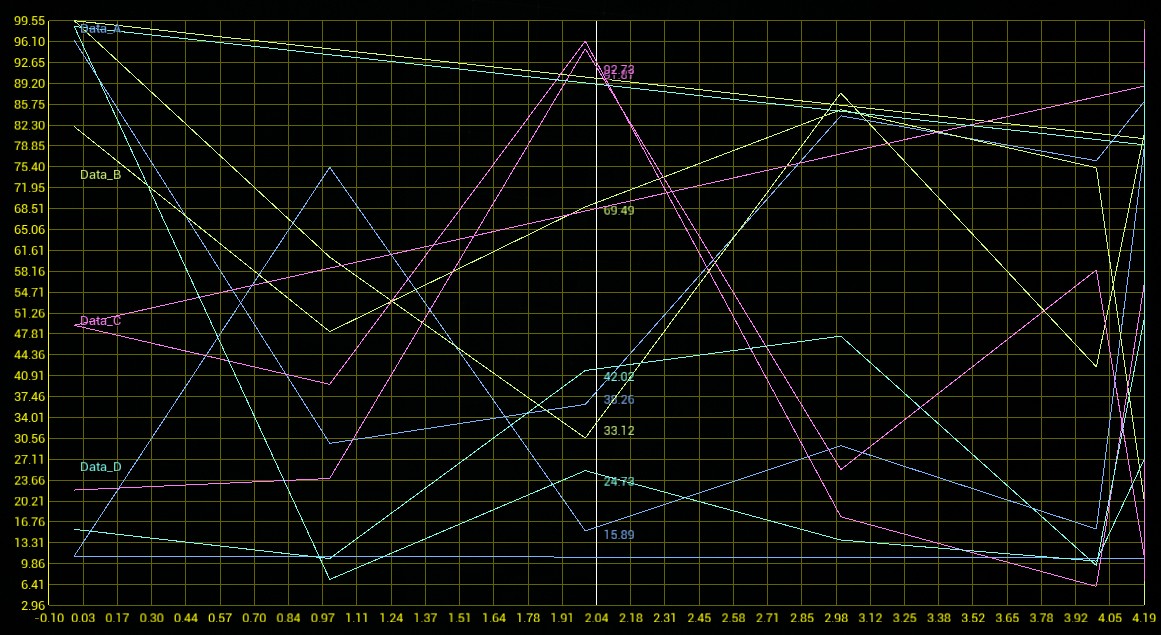
The UE_VLOG_HISTOGRAM macro is used to draw a histogram onto of the viewport, which represents a statistical distribution of a set of data. It can be used to visualize data distributes (e.g., AI decision-making weight distributions, character attribute changes, etc.)
Note: To visualize the Histogram, make sure to enable the Graphs option int he Visual Logger.
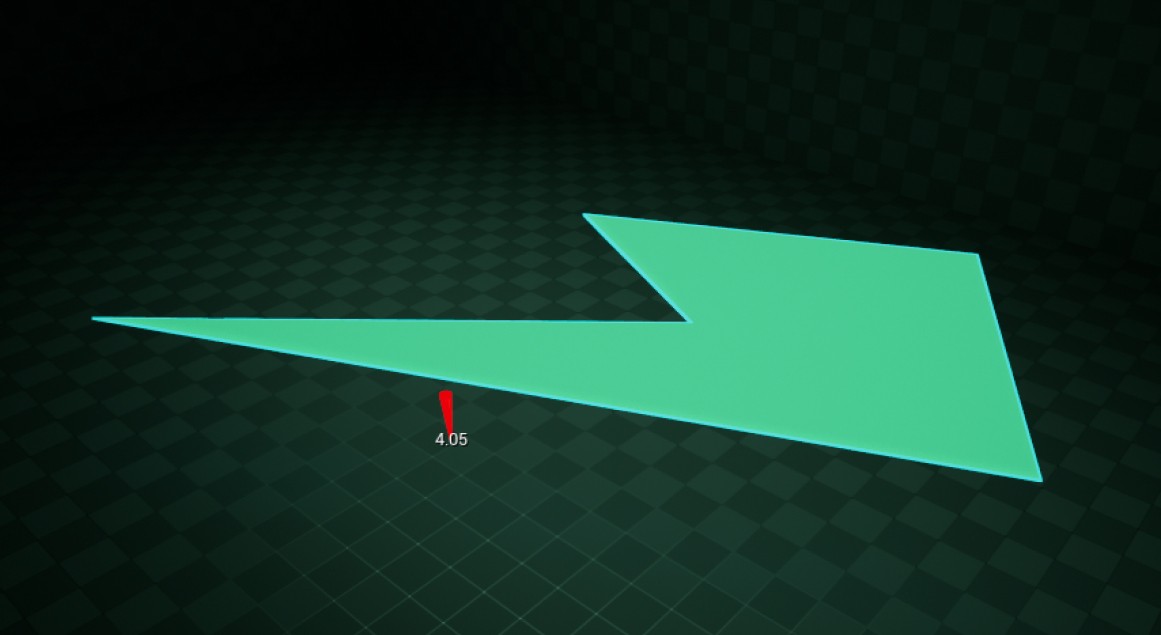
The UE_VLOG_CONVEXPOLY macro is used to draw a 2D convex-hull polygon. It can be used to visualize areas or regions (e.g., navigation, pathing, sight, etc.)
The UE_VLOG_EVENT_WITH_DATA macro is used to provide custom event-based data to the Visual Logger. It can be used to record specific events or actions with associated data, providing more context for debugging and analysis.

The UE_VLOG_EQS macro is used to log data related to the Environmental Query System (EQS), which itself is a system for querying the environment to make AI-based decisions.
This macro, in particular, logs the results of EQS queries, providing insights into AI decision-making.
Thankfully, it’s pretty straightforward to get started with the Visual Logger in C++. Here are some code snippets to get you started —
This is the required C++ include for the Visual Logger.
#include "VisualLogger/VisualLogger.h"When dealing with VisLogging, you might want to define a specific log type.
DEFINE_LOG_CATEGORY_STATIC( LogUDVisLog, Log, All )The class used to call VisLog functions.
FVisualLoggerHere’s a minimal viable example for drawing a VisLog box.
#include "VisualLogger/VisualLogger.h"

DEFINE_LOG_CATEGORY_STATIC( LogUDVisLog, Log, All )

AUDVisLogExample::Example()
{

#if ENABLE_VISUAL_LOG

	if (!FVisualLogger::IsRecording()) { return; }

	const UWorld* World = GetWorld();
	if (!World) { return; }

	const FVector BoxLocation = GetActorLocation() + FVector(500.0f, 0.0f, 0.0f);
	const FVector BoxExtent(100.0f, 100.0f, 100.0f);
	const FBox Box(BoxLocation - BoxExtent, BoxLocation + BoxExtent);
	UE_VLOG_BOX(World, LogUDVisLog, Log, Box, FColor::Blue, TEXT("Draw Box"));

#endif
}